Master your scam with your friends microphone setup for seamless online co-op chats and AI voice interactions. Get the latest configuration tips.
Published: Scam With Your Friends Wiki Editorial Team
Table of Contents
Hitting Your Quota with Crystal-Clear Audio
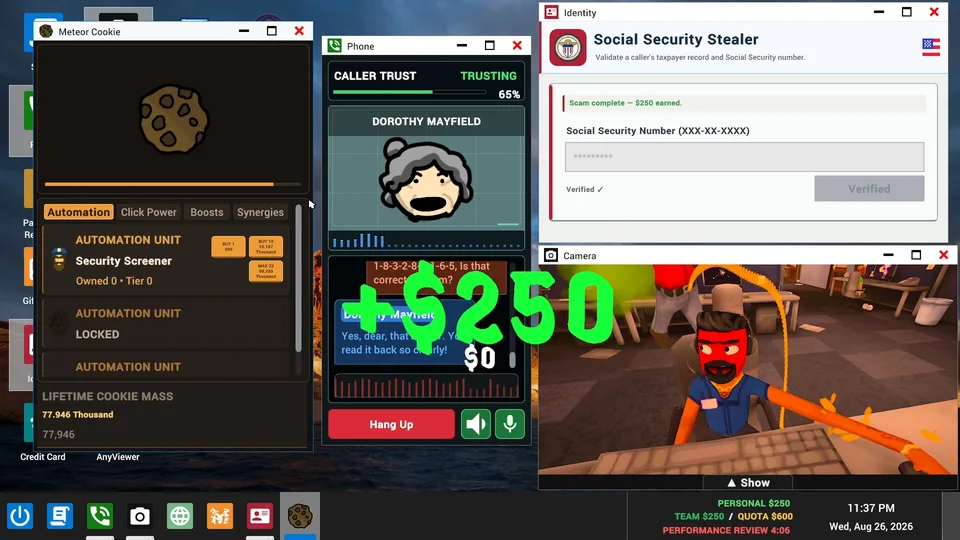
Cooperative gaming relies heavily on clear communication, but running a virtual scam call center adds an entirely new dimension to your voice chat needs. When you dive into the chaotic office environments of Scam With Your Friends, ensuring your scam with your friends microphone setup is properly configured can mean the difference between hitting your daily quota and getting fired by your rageaholic boss. Because the game relies heavily on dialogue-heavy mechanics and real-time AI caller interactions, improper audio settings might lead to miscommunications with both your human teammates and the procedurally generated victims on the other end of the line.
Mastering your scam with your friends microphone setup ensures that every custom voice line, team strategy, and improvised pitch is transmitted without distortion. Whether you are coordinating a massive office prank during a police raid or trying to trick AI callers out of their life savings, your input devices need to be finely tuned. In this comprehensive guide, we will break down the essential audio configurations, hardware prerequisites, and troubleshooting tips required to get your voice chat running smoothly on Steam.
Tip
Always test your input levels in Windows sound settings before launching the game to prevent clipping during intense co-op sessions.
Understanding In-Game Audio Architecture
Before diving into physical hardware adjustments, it helps to understand how the title handles audio input and output. According to developer updates and store page details from JakeHub and Metater, the experience integrates dynamic AI responses that react to spoken dialogue and customized JSON files. Proper calibration of your input device ensures the game's speech recognition and voice-cloning features capture your voice accurately.
Audio Component
Default Setting Recommendation
Purpose in Gameplay
Input Sensitivity
50% - 60%
Prevents background office noise from triggering team chat.
Output Volume
Balanced with Master
Allows clear hearing of AI caller responses and alerts.
Stereo Sound
Enabled
Enhances directional awareness during workplace disasters.
Push-to-Talk
Optional (Based on preference)
Minimizes keyboard clatter during intense run-based progression.
According to community reports from early playtesters, configuring your default recording device directly inside the Steam overlay before starting a session resolves most initial detection errors. A proper scam with your friends microphone setup prevents annoying echo issues when playing in public lobbies with random teammates.
Step-by-Step Configuration Guide
Getting your hardware ready for a shift at the call center involves a few straightforward steps. Follow this structured approach to ensure optimal performance across both single-player and online co-op modes.
Check Hardware Connections: Ensure your headset or standalone mic is securely plugged into a 64-bit Windows 10 or Windows 11 PC, meeting the minimum RAM and graphics requirements specified on the official Steam Store Page.
Configure Windows Sound Control Panel: Set your preferred microphone as the default communication device and adjust the boost levels to avoid low-gain issues.
Adjust In-Game Audio Settings: Navigate to the options menu within the title to configure custom volume controls and stereo sound settings suited to your hardware.
Perform a Voice Test: Join a solo session or a private online lobby to verify that your voice commands trigger the dynamic AI responses correctly.
Headset Microphones
Ideal for general players, offering integrated noise cancellation and straightforward plug-and-play USB connectivity for quick lobby setups.
Standalone XLR/USB Mics
Best for content creators and streamers who want broadcast-quality audio fidelity when running custom voice-cloning and dialogue mods.
Troubleshooting Common Voice Issues
Even with a careful scam with your friends microphone setup, technical hiccups can occasionally occur during chaotic workdays. Player experience highlights several common pitfalls, such as input devices resetting after system updates or background noise gates cutting off whispered schemes.
Verify that your operating system has granted microphone permissions to Steam and related desktop applications.
Check if third-party audio enhancement software conflicts with the game's real-time dialogue engine.
Restart both your client and your PC if the microphone stops transmitting after a heavy workplace disaster event like an in-game airstrike or virus attack.
Ensure your network stability is high, as packet loss can sometimes mimic audio transmission delays in online co-op lobbies.
For further community discussions and bug reporting, players frequently visit the official Steam Discussions Hub to share customized audio configurations and troubleshooting scripts.
Why is my microphone not registering in online lobbies?
Make sure your default Windows recording device matches the input device selected in your Steam voice settings. An incorrect scam with your friends microphone setup in the system tray is the most common culprit.
Does the game support push-to-talk functionality?
Yes, you can configure push-to-talk in the settings menu to prevent office background noise from broadcasting to your co-op partners during hectic gameplay moments.
Are standalone studio microphones compatible?
Absolutely. Most USB and XLR microphones work seamlessly as long as appropriate drivers are installed and your sample rate matches standard Windows audio formats.